Quickstart
1. Get it
Pick your system. Click the download button, and follow the steps under it. To install from a terminal instead, see Command line install methods.
- Open the file you downloaded,
wopr_0.6.0_windows_setup.exe: click it in your browser’s downloads, or double-click it in your Downloads folder. If the browser says that the file is not commonly downloaded, choose to keep it. - If Windows says Windows protected your PC, click More info, then Run anyway. Windows warns because the installer is not signed yet. That is also why it says Unknown publisher.
- Click Next, then Install, then Finish. The installer does not ask for an administrator’s
password. It also adds WOPR to your
PATH, so that typingwoprin a terminal starts it, unless you untick that box on the first page. - WOPR opens in a terminal window and starts dialing.
- To play again later, open the Start menu and click WOPR in the list of apps, or search for it.
If Windows says that Smart App Control blocked the installer, the installer cannot run while Smart App Control is on, because it is not signed yet. Troubleshooting says what you can do.
To update WOPR, run a newer installer the same way: it replaces the old version. To remove it, see Uninstall.
Installation also says how to remove WOPR, and how to check that a download is genuine.
2. Dial in
WOPR may be dialing already: the Windows installer starts it when you click Finish, and the Mac app starts it when you open the app. The lines in Command line install methods start it too, except Go’s. The Linux packages do not start it.
To start it yourself, or to play again later, open a terminal at least 80 columns wide and 24 rows tall. Then type:
woprOr open WOPR from the Start menu on Windows, from Applications on a Mac, or from your app menu on
Linux, if you installed a package. With the Mac app, that is the only way to start it: the app adds no
wopr command.
WOPR dials in, connects, and asks LOGON:.
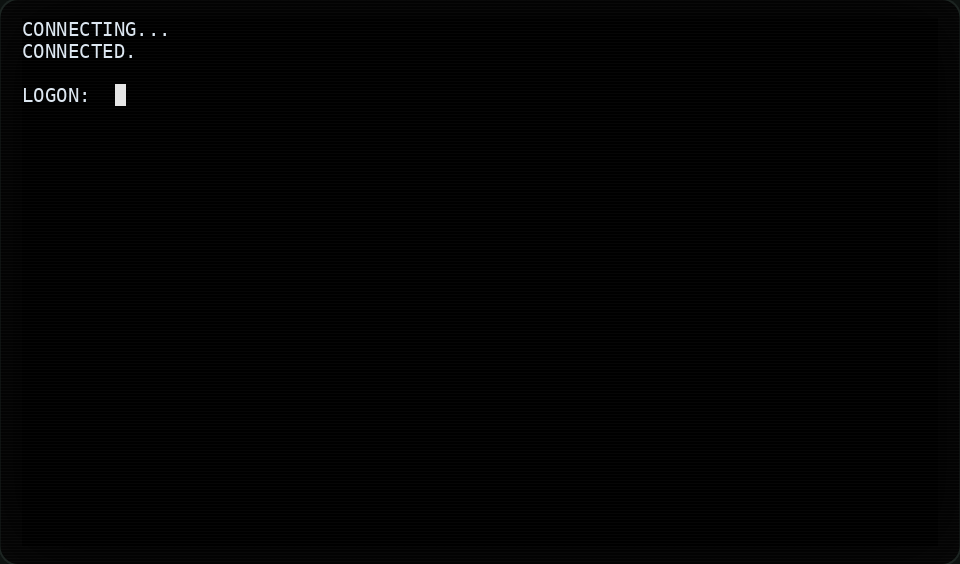
CONNECTING..., CONNECTED. and the LOGON: prompt.3. Log on
If you saw the film, you know what to type. If not: the password is the name of Professor Falken’s son,
Joshua. A wrong name drops the line, and WOPR dials again. Every third try, WOPR gives you a hint. You
can also type HELP GAMES or LIST GAMES at LOGON:, as David does in the film.
Once you are in, WOPR greets you and talks the way it does in the film. Answer it, and it asks:
SHALL WE PLAY A GAME?
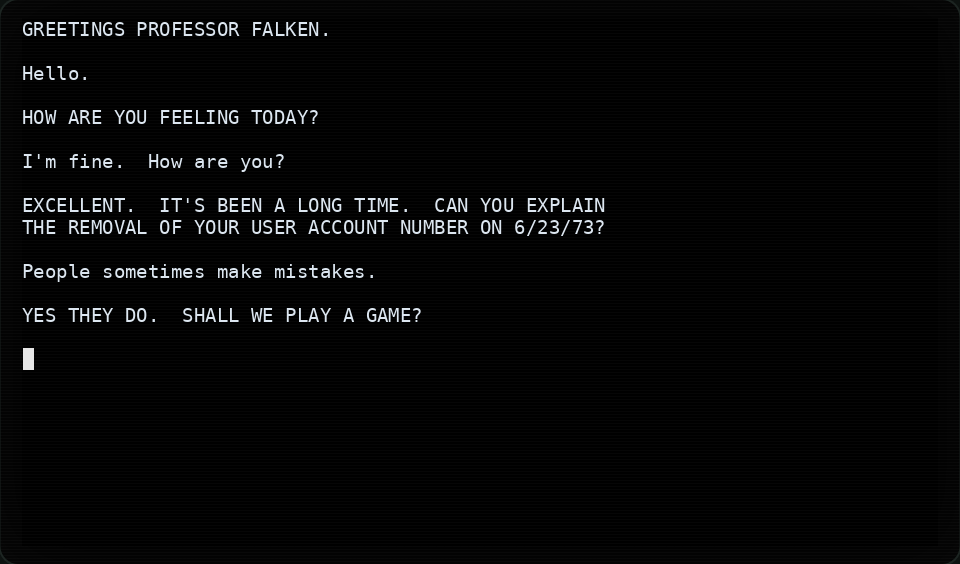
GREETINGS PROFESSOR FALKEN. and the film’s conversation.4. Play a game
Type LIST GAMES to see what WOPR knows. Then type a game’s number or its name. You can also ask:
Let's play chess. Ask for Global Thermonuclear War, and WOPR suggests chess first, as in the film. Ask
again, and it says FINE.
Each game prints its own instructions, and the Games pages explain them all. To leave a game, press Esc twice.
To skip the dial and the logon, name the game when you start:
wopr chess5. Log off
Type LOGOFF to end the session. Ctrl+C quits at any time.
Next
- Usage: every option, the themes, and what WOPR understands.
- Movie scenes: watch the film’s terminal scenes replay themselves.
- Accessibility: reduced motion, instant text, and play without colour.
- Troubleshooting: what to do when something goes wrong, and where to ask.