Installation
Install
Pick your system. Click the download button, and follow the steps under it. To install from a terminal instead, or with Go, see Command line install methods.
- Open the file you downloaded,
wopr_0.6.0_windows_setup.exe: click it in your browser’s downloads, or double-click it in your Downloads folder. If the browser says that the file is not commonly downloaded, choose to keep it. - If Windows says Windows protected your PC, click More info, then Run anyway. Windows warns because the installer is not signed yet. That is also why it says Unknown publisher.
- Click Next, then Install, then Finish. The installer does not ask for an administrator’s
password. It also adds WOPR to your
PATH, so that typingwoprin a terminal starts it, unless you untick that box on the first page. - WOPR opens in a terminal window and starts dialing.
- To play again later, open the Start menu and click WOPR in the list of apps, or search for it.
If Windows says that Smart App Control blocked the installer, the installer cannot run while Smart App Control is on, because it is not signed yet. Troubleshooting says what you can do.
To update WOPR, run a newer installer the same way: it replaces the old version. To remove it, see Uninstall.
wopr is one program, with nothing else to install. It runs on Windows 11, macOS 26 Tahoe and Linux, on
amd64 (x86-64) or arm64 computers, in a terminal at least 80 columns wide and 24 rows tall. It never uses
the network, and it collects no data.
Uninstall
wopr keeps no settings. The only file it leaves behind is a
debug log, if you ever made one. The steps below delete that too.
If you installed WOPR with a download button:
- Open Settings, then Apps, then Installed apps.
- Click … next to WOPR, then Uninstall.
- Click Uninstall again, then Yes.
On Windows 10, open Settings, then Apps, then Apps & features. Click WOPR, then
Uninstall. This removes the Start menu entry and the debug log too. It also removes WOPR’s folder
from your PATH, even if the PowerShell line put it there.
If you installed it from the command line:
In PowerShell, this line deletes WOPR’s folder and its debug log, and removes the folder from your PATH:
$d = "$env:LOCALAPPDATA\Programs\wopr"; Remove-Item -Recurse -Force $d -ErrorAction SilentlyContinue; $k = [Microsoft.Win32.Registry]::CurrentUser.CreateSubKey('Environment'); $p = $k.GetValue('Path', '', 'DoNotExpandEnvironmentNames'); $k.SetValue('Path', ((@($p -split ';') | Where-Object { $_ -and $_ -ne $d }) -join ';'), 'ExpandString'); $k.Close(); [Environment]::SetEnvironmentVariable('WOPR_PATH_REFRESH', $null, 'User'); Remove-Item -Recurse -Force "$env:LOCALAPPDATA\wopr" -ErrorAction SilentlyContinueCommand line install methods
Each tab has a line to paste into a terminal. The line downloads the latest release, installs it, and
starts WOPR. Go’s line only installs it. Use these lines if you prefer a terminal, if you want the wopr
command on a Mac, or on a Linux that the download buttons do not cover.
Open PowerShell (search for PowerShell in the Start menu), paste this line, and press Enter:
$a = if ("$env:PROCESSOR_ARCHITECTURE $env:PROCESSOR_ARCHITEW6432" -match 'ARM64') { 'arm64' } else { 'amd64' }; $d = "$env:LOCALAPPDATA\Programs\wopr"; $null = New-Item -ItemType Directory -Force $d; curl.exe -fL --proto '=https' --ssl-revoke-best-effort -o "$d\wopr.exe" "https://github.com/GhostofGoes/WOPR/releases/download/v0.6.0/wopr_0.6.0_windows_$a.exe"; if ($LASTEXITCODE -eq 0) { $k = [Microsoft.Win32.Registry]::CurrentUser.CreateSubKey('Environment'); $p = $k.GetValue('Path', '', 'DoNotExpandEnvironmentNames'); if (($p -split ';') -notcontains $d) { $k.SetValue('Path', ((@($p -split ';') + $d | Where-Object { $_ }) -join ';'), 'ExpandString'); [Environment]::SetEnvironmentVariable('WOPR_PATH_REFRESH', $null, 'User') }; $k.Close(); $env:Path += ";$d"; & "$d\wopr.exe" }It puts wopr.exe in %LOCALAPPDATA%\Programs\wopr, adds that folder to your PATH, and starts it. To
play again, open PowerShell and type wopr.
If Smart App Control is on, Windows blocks wopr. Smart App Control blocks every program that is not
signed, with no exception for one program, and wopr is not signed yet.
Troubleshooting says more.
Verifying binaries
This section is for people who want proof that a file came from this project before they trust it. You do
not need it to install wopr.
Every file in a release has a build-provenance attestation: a signed record, kept by GitHub, of the commit and the workflow that built the file. To check a file:
Install the GitHub CLI,
gh, version 2.68 or newer. Sign in once withgh auth login. A free GitHub account is enough. On Debian and Ubuntu, use the package repository that cli.github.com describes: theghin the distributions’ own repositories is too old.Run
gh attestation verifyon the file. The command below names the latest release. For an older file, put in its version: the one in the file’s name, or the one thatwopr --versionprints for the program you installed.gh attestation verify FILE --repo GhostofGoes/WOPR \ --signer-workflow GhostofGoes/WOPR/.github/workflows/release.yml \ --source-ref refs/tags/v0.6.0 --deny-self-hosted-runnersFILEis a file you downloaded, such aswopr_0.6.0_linux_amd64, or the program you installed:"$(command -v wopr)"on Linux and macOS,(Get-Command wopr).Sourcein PowerShell. The check compares the file’s contents, so the file’s name does not matter. A program installed withgo installwas built on your computer, not by the release workflow. It has no attestation, so this check fails for it. Go already checked its source against the Go checksum database. The program inside the Mac app does not pass the check either, because it is not one of the release’s files (see the list below). Check the.dmgyou downloaded instead.
Verification succeeded! means that this repository’s release workflow built the file from the tagged
source, on GitHub’s own machines. For a file from a release, any other result means: do not run it.
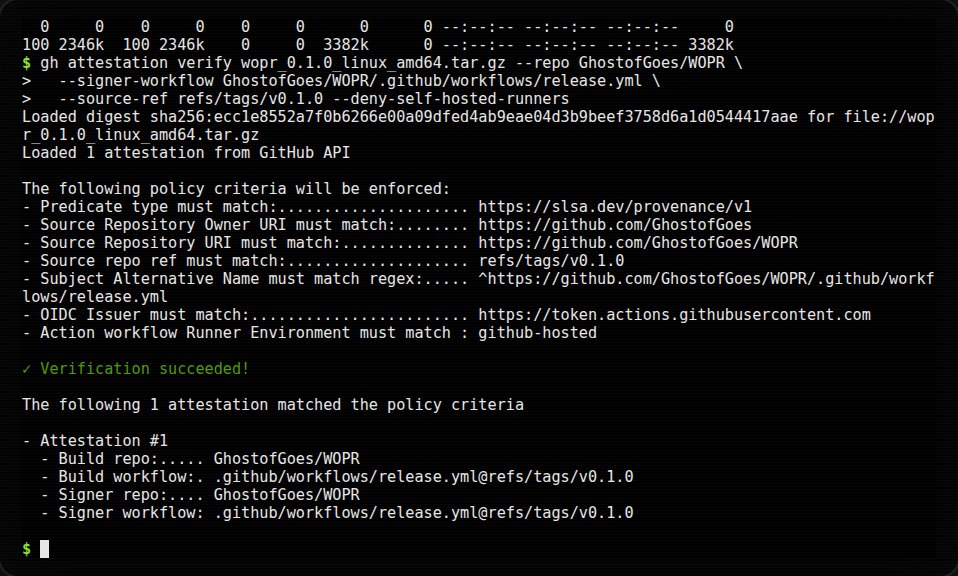
gh attestation verify on a Linux archive: the repository, the workflow and the tag all match.To check a file before you run it at all, download it by hand from the latest release, check it, and only then install it. Each release has, for each system:
wopr_<version>_<os>_<arch>(.exeon Windows): the program itself.<os>islinux,darwin(macOS) orwindows.<arch>isamd64orarm64. On Linux and macOS, make it executable withchmod +x.wopr_<version>_<os>_<arch>.tar.gz(.zipon Windows): the program with the README, the licence and the notices. On Linux and macOS it also holds the manual page,wopr.6.wopr_<version>_windows_setup.exe: the Windows installer. It holds both Windows programs, and it installs the one that fits the computer aswopr.exe, unchanged. So the check passes for the installedwopr.exetoo.wopr_<version>_macos.dmg: the Mac app,WOPR.app, in a disk image. Its program joins the two macOS programs into one file, so it matches neither of them. Check the.dmgitself, before you open it.wopr_<version>-1_<arch>.deb(<arch>as above:amd64orarm64) andwopr-<version>-1.<arch>.rpm(here<arch>isx86_64oraarch64, asuname -mprints it): the Linux packages. Install a file you downloaded withsudo apt install ./FILEorsudo dnf install ./FILE.checksums.txt: the SHA-256 checksum of every file. The installer and the.dmgare listed and attested like the rest.checksums.txt.ascandwopr_<version>-1_<arch>.deb.asc: OpenPGP signatures ofchecksums.txtand the.debfiles, made with wopr’s signing key. The.rpmfiles carry their signature inside.
To check a signature:
- Download the signing key, and check that its fingerprint is
B61F F1E7 7B9B 23A0 088F 4ED1 FBDA 9FB4 6837 FCB1. - Run
gpg --import wopr-signing-key.asc. - Run
gpg --verify checksums.txt.asc checksums.txt(orgpg --verify FILE.deb.asc FILE.deb).Good signaturemeans that the file is as the release workflow signed it. - Run
sha256sum --ignore-missing -c checksums.txt. It checks the files you downloaded against a list that you now know is genuine.
For an .rpm, import the key with rpm --import, then run rpm -K FILE.rpm. It prints
digests signatures OK.
A program downloaded with a web browser carries a mark that says it came from the internet, and the system may stop it. After you check the file:
- macOS says that it cannot check the program for malware. Clear the mark with
xattr -d com.apple.quarantine FILE. For the Mac app, follow the steps in the macOS tab under Install. Or drag the app to Applications, and clear the mark from all of it withxattr -dr com.apple.quarantine /Applications/WOPR.appbefore you open it. - Windows SmartScreen may say that it does not recognise the program. Choose More info, then
Run anyway. Or clear the mark with
Unblock-File FILEin PowerShell.
The lines in Command line install methods download with curl, wget
or dnf, which do not mark files, so these warnings do not appear for them. For the
installer and the Mac app, the Windows and macOS tabs under Install say what to
click. Windows’ Smart App Control is different: when it is on, it blocks every
program that is not signed, however the program was downloaded. Troubleshooting
says more.
Development builds
Every CI run on main builds all six targets. Open a
CI run on main
and download your platform’s file under Artifacts. It is the bare program: on Linux and macOS, make
it executable with chmod +x. The run also has the Windows installer, installer-windows, and the Mac
app, installer-macos. Development builds are for testing. They carry no attestation.